Backup and restore
Encrypted, scheduled backups of a Poste.io server, made and checked from the admin: the server configuration, all the mail or only some mailboxes, sent to one or more destinations at the same time (SMB/Samba, SFTP, S3, or a volume mounted by the host such as NFS).
Status of this add-on. This page describes what is in the repository now. The add-on is being built in stages; what a stage does not do yet is said where it matters (for example notifications, which come next).
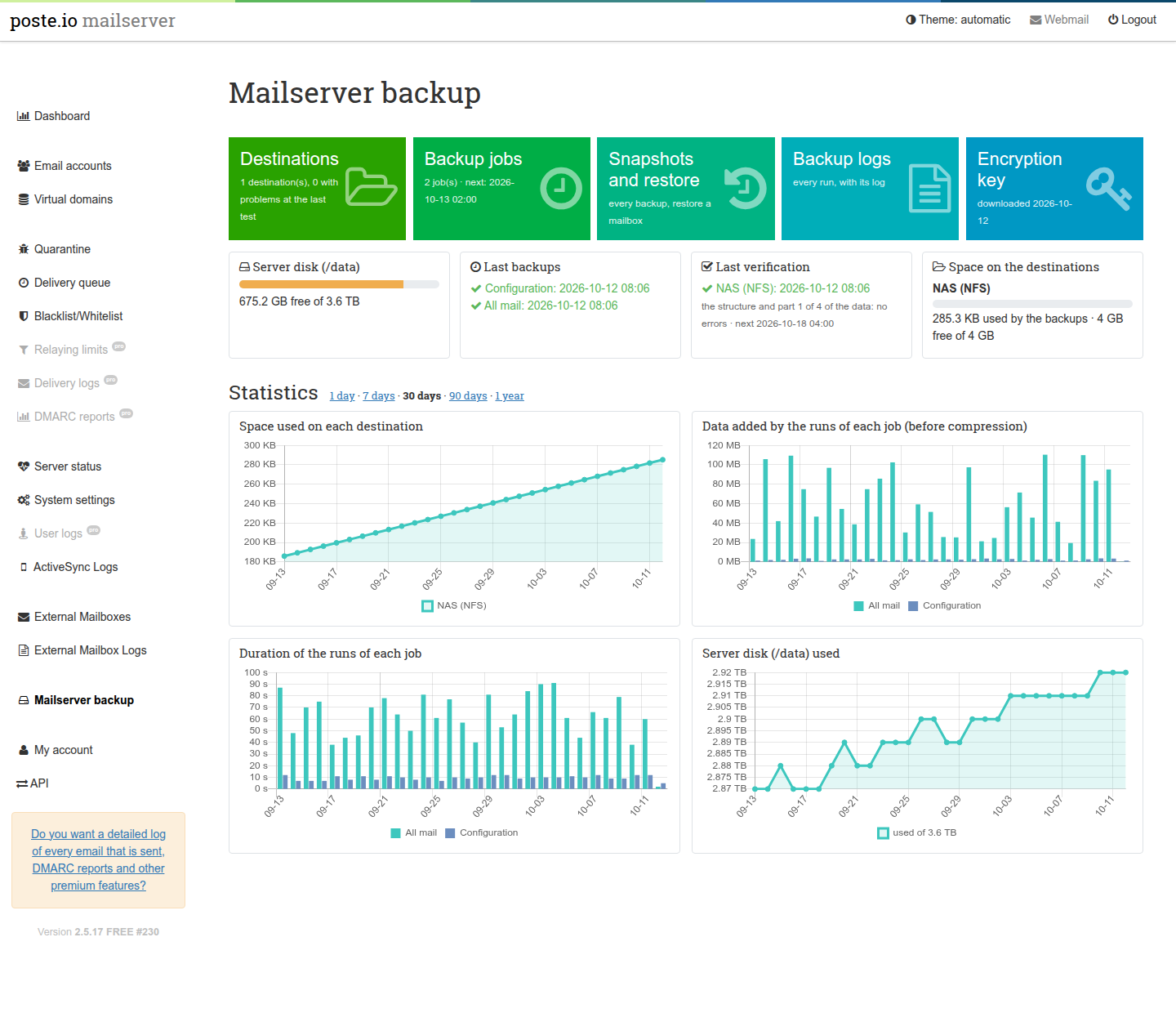
The add-on is independent of the others and of anything outside the container: it does not need a backup system on the host. If the host already backs up the whole machine (a hypervisor snapshot, a VM backup), this add-on adds what those cannot give: backups of the mail server alone, off the machine, encrypted, frequent, with single mailboxes to restore.
- What is backed up
- How it works
- The encryption key
- Destinations
- Backup jobs
- Watching the backups
- Restoring
- Reading the backups without the server
- Rebuilding the whole server
- Good practice
- A backup of a server that is running
- Security
- If the mail server is compromised
- Files and folders
- Troubleshooting
- Limits
- Removing it
What is backed up
A job backs up the server configuration, the mail, or both.
Configuration (a few megabytes):
| What | From |
|---|---|
| accounts, domains, aliases, passwords (hashed), limits | /data/users.db, copied with SQLite's own backup command while in use, then checked with an integrity check |
| calendars and address books (DAV) | /data/dav.db, same way |
| webmail settings, identities, address books | /data/roundcube/roundcube.db (it belongs to the webmail: the database and its write-ahead log are copied, again if they changed meanwhile, and the copy is checked) |
| server settings | /data/server.ini, /data/instance-id |
| TLS certificates (also Let's Encrypt) | /data/ssl |
| DKIM keys of each domain | /data/domains/<domain>/private, public, selector |
| spam filter training (rspamd's Bayes, in redis) | /data/redis/dump.rdb |
| ActiveSync device states | /data/zpush |
settings of the add-ons and of Poste.io under /data/var |
everything there except the virus database (downloaded again) and this add-on's own folder |
| the list of the messages of the backups (see Restoring) | /data/var/backup/engine/index.db, copied like the databases |
Mail: either all of it (/data/domains, every mailbox with its folders
and its filters, plus the messages held in quarantine) or only the mailboxes
chosen in the job (their whole home folder: mail and filters).
Never backed up: the encryption key and the add-on's settings (they hold
the passwords of the destinations: see Security), logs, the
outgoing mail queue, the virus database, the cached rule maps of the spam
filter (downloaded again), and the webmail's PGP keyrings (roundcube/enigma:
readable only by the webmail; users who use PGP in Roundcube export their keys
from there). More generally, a file of the configuration that the user mail
cannot read is left out on purpose, and each run's log says how many.
How it works
Two parts:
- the admin saves settings and requests;
- the engine (
/usr/local/bin/poste-backup, run by cron every minute) does the backups. It reads the settings and validates them again before using anything in them.
Both run as the user mail, the user Poste.io's admin already runs as and
that owns the mail. The backup never runs as root: whatever the admin's
settings say, the engine cannot do more than the admin itself could (see
Security).
The backups are made by restic: encrypted, with deduplication (a file already stored is never stored again, so an hourly backup of a large server stores only what changed), checked by content. Remote destinations are reached through rclone. Both come from the Debian packages of the image.
Each destination holds its own restic repository, and every job writes a full, independent copy to each of its destinations: losing one destination loses nothing. One destination can serve several jobs.
Each run of a job:
- with mail: brings the list of the messages up to date (see The list of the messages); then copies the databases in a consistent state and checks the copies;
- for each destination: checks it (a local folder must be a mounted volume,
not on the disk of
/data), creates the repository there only if the folder is empty (a folder with other files is never written to), backs up, then removes the old snapshots of that job according to its keep rules; - records the result for the admin (state and history).
A destination that fails does not stop the others. One run at a time: a long backup makes the next minutes wait (a lock), it is never started twice. After the jobs due, the engine runs the verifications due.
The result of a run on a destination is ok, warning or error:
- ok: the snapshot is complete. A message moved or deleted while the backup was reading the mailboxes (a message moved to another folder, a flag changed: Dovecot gives the file a new name) is not a problem: the run says how many with a note, and the next backup has them where they are now.
- warning: the snapshot was made, but a file could not be read (for example a permission problem), a mailbox chosen in the job no longer exists, or the old snapshots could not be removed. The run says what; look at its log.
- error: no snapshot on that destination.
The encryption key
Every backup is encrypted with a key made at the first start of the container
(/data/var/backup/settings/restic.key, 48 random bytes). Without the key
no backup can be read, not by you and not by anyone who gets hold of the
destination.
The key is not part of any backup (a backup protected by a key stored inside it would be useless). Download it from Mailserver backup > Encryption key and keep it outside the server, where you keep your other passwords. The admin shows a warning until it has been downloaded once.
The key is never replaced: if the file is deleted, a new one is made at the
next start, and that new key cannot read the backups made before. Put the old
key back instead (same file, owner mail, mode 0600).
Destinations
Mailserver backup > Destinations > Add a destination. The Test button next to Save tries the values of the form before they are saved: it checks that the destination can be reached, that the folder is empty or already a repository, the free space, and writes and removes a small file (a REST server reports no free space and is not written to: there the Test checks the certificate, the user and the repository). The page is not reloaded, so a password typed stays in its field. A saved destination can be tested again from its page. Use one folder per mail server.
Give the backups an account of their own on the destination, with access to that folder only (see Good practice).
SMB / Samba
Server, share, folder inside the share, user, password, and the domain if the
server needs one. Works with Samba, Windows shares and NAS shares (SMB 2 or
newer). The free and total space of the share are read with smbclient: the
SMB client inside rclone 1.60 reports them divided by a factor that depends
on the server (half, on Samba and on a QNAP NAS), so its numbers are not
used.
SFTP
Server, port, user, folder, and a login with a password or with a key:
- with a key: nothing is pasted in the form. When the destination is
saved, the admin makes a key pair (ed25519) for it, keeps the private key
and shows the public key, with a ready command to run on the server as that
user (it creates
~/.sshwith mode 700 and adds the key to~/.ssh/authorized_keyswith mode 600) and a button to copy it. On a NAS the user needs a home folder and the SFTP service on, or the key is not read. Then test the destination; - the server's own SSH key must be confirmed before anything is sent. The
first test shows the fingerprints the server offers; compare them with the
server's (
ssh-keygen -lf /etc/ssh/ssh_host_ed25519_key.pubon the server) and confirm. From then on a different key stops the backups instead of sending them to whoever answers. Changing the server or the port asks for a new confirmation.
The folder is required (the repository must not land among the user's own files).
S3
Endpoint (https://...), region (if the provider needs it), bucket, folder
inside the bucket, access key and secret key. Works with Amazon S3 and with
S3-compatible services (MinIO, Backblaze B2, Wasabi, Ceph, ...). If the bucket
does not exist it is created, when the key is allowed to. S3 does not report
free space.
A volume mounted by the host (NFS, a second disk, ...)
A container cannot mount network file systems itself (it would need
privileges that make it far less safe), so the host mounts the share and
passes it to the container as a volume, under /backup, /mnt, /srv or
/media. For example with Docker Compose and an NFS export:
services:
  mailserver:
    # ...
    volumes:
      - ./data:/data
      - nfs-backup:/backup/nfs

volumes:
  nfs-backup:
    driver: local
    driver_opts:
      type: nfs
      o: "addr=nas.example.lan,rw,nfsvers=4"
      device: ":/export/mail-backup"
Then add a destination of type Folder with the path /backup/nfs. The
engine refuses a folder that is not a mount point (the backup would stay
inside the container and vanish with it), that is on the same disk as
/data (it would not survive the loss of that disk), or that it cannot
write: the backups are written by the user mail, uid 8, gid 8. Give the
folder of the volume to that user (for an NFS export: a directory owned by
8:8 on the server, and an export that does not squash that user).
REST server, append-only (rest-server)
restic's own server, rest-server,
started with --append-only, refuses to delete: this mail server can
only add backups there, and someone who takes it over cannot delete or
overwrite the backups there either (see
If the mail server is compromised). The
old backups are then removed on the server's side, by the server's own
schedule and with the key. HTTPS only.
On the NAS (or another machine), with Docker (QNAP Container Station, Synology Container Manager, ...): a folder for the data, a certificate whose name is the one the mail server will use (a host name, or an IP address), and a user:
mkdir -p /share/backup/rest && cd /share/backup/rest
# a certificate for the name used by the mail server (here nas.example.lan; for an
# address use subjectAltName=IP:192.0.2.10), valid ten years
openssl req -x509 -newkey ed25519 -nodes -keyout key.pem -out cert.pem -days 3650 \
    -subj "/CN=nas.example.lan" -addext "subjectAltName=DNS:nas.example.lan"
openssl x509 -in cert.pem -noout -fingerprint -sha256      # compare it in the admin
docker run -d --name rest-server --restart unless-stopped -p 8000:8000 \
    -v /share/backup/rest:/data -e OPTIONS="--append-only --tls --tls-cert /data/cert.pem --tls-key /data/key.pem" \
    restic/rest-server:0.12.1
docker exec -it rest-server create_user mailserver          # asks for the password
In the admin: Add a destination, type REST server, the server's name,
port 8000, a repository name (for example mailserver), the user and the
password, Accepts only new backups (append-only) ticked. The first
Test shows the certificate the server presents: compare its fingerprint
with the one printed above, then confirm it. From then on only that
certificate is accepted, also by the admin's own checks (another one is
refused, as for the SSH keys of SFTP, even one signed by a public authority),
and the user and password never appear on a command line (they go to restic
in its environment). An expired certificate is refused.
A new certificate (renewed, or a new server under the same name): the backups to that destination stop with "the server's certificate changed". The Test on the destination's page then shows the new certificate with its fingerprint, to be compared and confirmed like the first one; nothing is sent to the server before. The address may be a name or an IP address (IPv6 too); the certificate must name it.
On an append-only destination this server never removes snapshots: the keep rules of the jobs are not applied there, and Remove these backups is not offered (and refused by the engine). Remove them on the server's side, for example once a week, with the same rules as the job and the key (the last line of the file downloaded from the admin), kept outside the folder the REST server serves:
tail -n 1 poste-backup-key.txt > /share/backup/restic.key && chmod 600 /share/backup/restic.key
docker run --rm -v /share/backup/rest:/data -v /share/backup/restic.key:/key:ro -e RESTIC_PASSWORD_FILE=/key \
    restic/restic:0.14.0 -r /data/mailserver forget --host poste --group-by host,tags \
    --keep-daily 7 --keep-weekly 4 --keep-monthly 6 --prune
Keep that key file readable only by the administrators of the NAS. Free
space is not reported by a REST server (as with S3). Without
--append-only on the server, untick the box: this server then removes the
old snapshots there as on any other destination.
Verification
A backup that cannot be read is found only when it is needed, unless it is read before. Each destination is verified on a schedule of its own (on its page, Verification): restic checks the structure of the repository and reads again a part of the stored data, a different part each time, so that everything is read once in a number of verifications. By default: every Sunday at 04:00, a quarter of the data (all of it read in about four weeks). It can be every day, week or month, or never, and from all the data each time to 1/52 of it.
A damaged or missing file on the destination is found that way: the check of the structure alone does not read the data, the reading does (the tests change one byte of a data file on a destination and expect the verification to find it). The result shows on the dashboard (Last verification, and among the problems when it found errors), on the destinations page and on the destination's page with the last verifications; Verify now runs one at the next minute. The first scheduled verification of a new destination is at its next slot, not at once. While a verification runs no backup runs: one that is due starts right after (restic locks the repository for the check); a verification stops after 6 hours at most. A part where errors were found is read again at the next verification, until it is clean: the error stays on the dashboard until then, it does not disappear because another part was fine. A verification that could not run to its end (the destination not reachable, for example) is shown as failed and tried again an hour later.
Backup jobs
Mailserver backup > Backup jobs > Add a backup job:
- What: the server configuration, and no mail / all mail / only some mailboxes;
- When: every hour (at a minute), every day, every week (a day) or every month (day 1 to 28) at a time, in the time zone of the schedules (see below);
- Destinations: one or more, each gets a full copy;
- Keep: how many hourly, daily, weekly and monthly snapshots to keep. After
each run the older snapshots of that job are removed: for each hour,
day, week and month the last snapshot is kept, up to these numbers (restic's
forget --keep-*, then--prune). At least one number must be above 0. Example: 24 hourly, 7 daily, 4 weekly, 12 monthly = every hour for a day, every day for a week, every week for a month, every month for a year.
Time zone of the schedules, chosen under the list of jobs: the hours of
the jobs and the times shown in the backup pages are in that zone. Without a
choice it is the container's time zone (its TZ, otherwise
/etc/timezone), which in Poste.io's image is UTC unless TZ is set. The
choice changes only the backups: the server and its logs keep their own
time (usually UTC, which is a good thing for logs: no hour missing or
repeated when the clocks change). The backup's own logs write each time with
its offset (+02:00), so they can be compared with the others. After a
change of zone, a job whose time has already passed today in the new zone
may run once, at the next minute.
A job runs when its time comes; Run now (or Save and run now) starts it within a minute. A run missed because the server was off runs once, as soon as the server is back (not once per missed hour). A new job does not run for a time that was already past when it was created.
The page shows, for each job, the last run on each destination: how much new data it stored, how long it took, or the error, with a link to its log.
Deleting a job (or a destination) removes it from the settings only: the backups it made stay on the destinations, encrypted, and can still be restored. They are no longer thinned out by any keep rule: remove them from Snapshots and restore when they are not needed any more (see Removing the backups of a job).
Watching the backups
- Dashboard: the problems found (a failed run, a key never downloaded, the engine not running), the job running now with its progress (percentage, data and files done of the total, then removing old snapshots and measuring the space), the disk of the server, the last backups and the space on each destination: what the backups use there and, where the server reports it, the free space (S3 does not). The space is measured after each backup. The bars of the disk and of the destinations turn yellow from 80% used and red from 90%: Space warnings, on the destinations page, sets these two limits (they are also the limits of the warnings of the next stage).
- Last verification of each destination, and when the next one is (see Verification).
- Statistics, for the last day (one value per hour), or 7 days, 30 days, 90 days or a year (one value per day): the space used on each destination and on the server's disk (the last measure of the day), the data added by the runs of each job (a run writes the same data to each of its destinations: it counts once) and how long they took. They are drawn from the history of the runs (kept 400 days by default, see below); the space values are there from this version on.
- The dashboard, the jobs and the logs update themselves: every few seconds while a job runs, every 15 seconds otherwise; the page reloads when a job starts or ends.
- Logs: one line per run and destination, the most recent first, with a link to the log of the run (what the engine did, in English, with the output of restic). Under the list, how long they are kept: the logs of the runs for 90 days and the history (one line per run, for the statistics) for 400 days by default, from 1 to 3650 days. Older ones are removed after each run and once a day; the backups themselves are not touched.
- The pages of the admin are in English and Czech (Poste.io's two languages, chosen by the browser), including the messages of the tests, of the validation and of the runs. The logs themselves stay in English.
There are no notifications yet (e-mail, Telegram, a webhook, a status for
monitoring): they are the next stages of this add-on. Until then a failed
backup is seen only in the admin, so look at it from time to time, or watch
poste-backup status (JSON) from your monitoring.
Restoring
Mailserver backup > Snapshots and restore lists the snapshots of a destination (read from it when the page opens), newest first: when, which job, what it holds (configuration, all mail, some mailboxes). From there:
- Restore a mailbox… (a snapshot with mail), in three steps on one page:
- the mailbox: the mailboxes of the snapshot that hold messages, with how many; one that is no longer on this server is marked. Empty folders (Poste.io makes one for every address, redirects included) are only counted, in a line under the list: there is nothing to restore there;
- what, one of two ways:
- whole folders, or the messages that match a filter: the folders of that mailbox with their messages, all ticked (the whole mailbox), or only some of them; and, if you want only some messages, a filter: received from / to (the dates as the server counts them, both days included), the sender contains, the subject contains (case does not matter). Folders and filter go together, for example only Sent, sender customer.com, from 1 to 7 October;
- single messages: the messages of the snapshot, newest first, 50 a page, with the date received, the folder, the sender and the subject; choose a folder or all of them, search the sender or the subject (case does not matter, accented letters too), tick the messages you want, across pages and searches (up to 1,000 at a time);
- where: the mailbox of this server to restore into (the same one is chosen when it exists; otherwise none is, and nothing starts until you choose), the name of a new folder (Restored unless you change it) and where to make it: at the top of the mailbox or inside one of its folders.
Before you confirm, the page says where the messages go. They go under the new folder with the snapshot's folders (… / INBOX, … / Sent), their flags (read, …), and subscribed, so that mail programs show them: nothing already in the mailbox is changed. If the name is taken, the folder gets (2). Messages are never put back into their original folders: Dovecot's import does not recognise a message that is still there, so every one of them would appear twice. Move what you need from the restored folder with your mail program, then delete it.
Single messages go under the new folder in the same way, each in its folder (… / INBOX, … / Sent), and only those.
The restore runs in the background (the engine takes it within a minute:
the page shows it, then its result and its log). Only the folders chosen
are read from the destination, into a work folder on /data, then
imported by Dovecot, so they are written twice: the engine adds up their
size first and refuses the restore unless /data has room for twice that
plus 256 MB (a full disk would stop the mail). The messages count towards
the quota of the mailbox. Symbolic links in the restored folders are
removed before the import, never followed.
- Restore the server…: the whole server is restored on a new
installation, not from a running server (its files would be replaced
while in use). The page shows the commands of
Rebuilding the whole server filled in for
that destination and that snapshot (only for snapshots with the
configuration); passwords are asked when they run and are never shown. For
SFTP the server's keys are the ones confirmed in the admin, and a
destination that logs in with a key needs a key of your own: the admin's
key pair is not in the backups.
The list of the messages
A snapshot holds files: the sender, the subject and the date of each message
come from a list the engine keeps on the server,
/data/var/backup/engine/index.db (readable only by mail, like the rest of
/data/var/backup). Before every run of a job with mail, the engine looks at
the files of the mailboxes, reads the header of the files that are new since
the last run (sender, subject; the date received and the size are the
file's) and notes the messages that are no longer in their mailbox. The first
run reads every message once; later runs read only the new ones. A problem with the list is
written in the run's log and never makes the backup fail.
A message is known by its file name in the Maildir up to the flags: the same in every snapshot, and after a move to another folder. A message that is no longer in its mailbox stays in the list, because older snapshots still hold it; it is removed once no snapshot kept on any destination can hold it (it left its mailbox before the oldest snapshot with mail on every destination of the jobs with mail).
The list is part of the backup of the configuration, as a consistent copy (step 4 of Rebuilding the whole server puts it back). A message the list does not know, for example one deleted before the list was kept, is still shown and can be restored: with its date and size, without sender and subject. Note that the sender and the subject of a deleted message stay in the list (and in the backups of the configuration) as long as a backup may hold the message itself.
If the list is ever damaged, the engine sets it aside
(index.db.damaged) and makes it again from the mailboxes, and a backup of
the configuration goes on without it: the list never makes a backup fail.
The first run reads the header of every message; on a very large server it
stops after 20 minutes and the next runs read the rest (the log says how
many are left).
The page reads the files of a snapshot once and keeps them in a cache
(/var/cache/poste-backup/listing.db, the last five mailboxes looked at), so
that pages and searches answer at once.
Removing the backups of a job
Under the list, Backups of each job counts the snapshots of each job on
that destination, also of jobs that no longer exist (deleted job).
Remove these backups (after ticking the confirmation) removes every
snapshot of that job from that destination and frees the data that only
they hold (restic's forget --prune); the backups of the other jobs are
not touched. It cannot be undone. A job that still exists makes new backups
at its next run.
From the command line
poste-backup restic <destination id> <restic command> runs restic on a
destination's repository with its settings and the key. The ids are in the
admin's addresses (/admin/backup/destinations/<id>/edit) and in
/data/var/backup/settings/config.json.
# the snapshots on a destination
docker exec mailserver poste-backup restic 0a1b2c3d4e5f snapshots

# what is in the latest snapshot of a job
docker exec mailserver poste-backup restic 0a1b2c3d4e5f ls latest --tag job:<job id>

# one mailbox back, into a separate folder (nothing is overwritten)
docker exec mailserver poste-backup restic 0a1b2c3d4e5f restore latest \
    --target /tmp/restore --include /data/domains/example.com/alice
The restored mailbox is then in /tmp/restore/data/domains/example.com/alice;
copy the messages you need back into the mailbox's Maildir (owner mail),
or into a new folder of it, for example:
docker exec mailserver sh -c 'H=/data/domains/example.com/alice; U=alice@example.com
  mkdir -p "$H/Maildir/.Restored/cur" "$H/Maildir/.Restored/new" "$H/Maildir/.Restored/tmp" &&
  cp -a "/tmp/restore$H/Maildir/cur/." "$H/Maildir/.Restored/cur/" &&
  chown -R mail:mail "$H/Maildir/.Restored" &&
  doveadm force-resync -u "$U" "*" && doveadm mailbox subscribe -u "$U" Restored'
This copies the messages of the inbox (Maildir/cur); the other folders are
Maildir/.<name>/cur (Poste.io stores mail in the Maildir++ layout: .Sent,
.Junk, ...). The procedure is run by the add-on's tests, as written here.
The databases are in the snapshot as consistent copies under
/data/var/backup/engine/staging/ (users.db, dav.db, roundcube.db).
poste-backup always runs as the user mail (started as root, it switches),
so the restored files belong to mail. That is right for the mail and for
Poste.io's own files owned by mail; a file that belongs to another user on
the server (for example the webmail's roundcube.db, owned by www-data)
needs its owner set back by root after copying it into place
(chown www-data:www-data ...).
When the server itself is lost, see the next two sections.
Reading the backups without the server
The backups are ordinary restic repositories. They can
be read from any machine with restic 0.14 or newer and rclone 1.60 or
newer (on Debian or Ubuntu: apt install restic rclone openssh-client; both
are also in the image built from this repository): when the mail server is
lost, or to look into the backups without touching it.
What you need:
- the key file downloaded from Mailserver backup > Encryption key;
- the destination as it was entered in the admin: its type, server, share or bucket, folder, user and password (or access key and secret key). The add-on's settings are not in the backups, because they hold these passwords: keep a note of them with the key.
The commands are for bash. First the key, which is the last line of the downloaded file (the file as a whole is not the key):
tail -n 1 poste-backup-key-mail.example.com.txt > restic.key
chmod 600 restic.key
export RESTIC_PASSWORD_FILE=$PWD/restic.key
Then the destination, one of the following. rclone reads it from variables
(RCLONE_CONFIG_BK_... define a remote named BK), with the password
"obscured" as rclone requires; read -rsp asks for it without showing it.
RESTIC_REPOSITORY is the folder of the destination: for SMB the share and
the folder in it, for SFTP the folder, for S3 the bucket and the folder in it.
SMB / Samba (add RCLONE_CONFIG_BK_DOMAIN=... if the server needs a
domain):
export RCLONE_CONFIG_BK_TYPE=smb RCLONE_CONFIG_BK_HOST=nas.example.lan RCLONE_CONFIG_BK_USER=mailbackup
read -rsp 'Password: ' P; echo
export RCLONE_CONFIG_BK_PASS=$(printf '%s\n' "$P" | rclone obscure -) && unset P
export RESTIC_REPOSITORY=rclone:BK:share/folder
SFTP: the server's SSH key is checked first, as the admin does: read it,
compare its fingerprints with the server's
(ssh-keygen -lf /etc/ssh/ssh_host_ed25519_key.pub on the server), and give
it to rclone. A server that shows another key is then refused.
ssh-keyscan -p 22 backup.example.com > known_hosts
ssh-keygen -lf known_hosts
export RCLONE_CONFIG_BK_TYPE=sftp RCLONE_CONFIG_BK_HOST=backup.example.com RCLONE_CONFIG_BK_PORT=22 \
       RCLONE_CONFIG_BK_USER=mailbackup RCLONE_CONFIG_BK_KNOWN_HOSTS_FILE=$PWD/known_hosts
read -rsp 'Password: ' P; echo
export RCLONE_CONFIG_BK_PASS=$(printf '%s\n' "$P" | rclone obscure -) && unset P
export RESTIC_REPOSITORY=rclone:BK:/srv/backup/mail
A destination that logged in with a key: the key pair made by the admin
stayed on the lost server (it is never in the backups). Log in with the
account's password, or add a key of yours to the account on the SFTP server
and use it instead of the password:
export RCLONE_CONFIG_BK_KEY_FILE=~/.ssh/id_ed25519.
S3 (add RCLONE_CONFIG_BK_REGION=... if the provider needs a region):
export RCLONE_CONFIG_BK_TYPE=s3 RCLONE_CONFIG_BK_PROVIDER=Other RCLONE_CONFIG_BK_ENDPOINT=https://s3.example.com \
       RCLONE_CONFIG_BK_ACCESS_KEY_ID=AKIAEXAMPLE
read -rsp 'Secret key: ' P; echo
export RCLONE_CONFIG_BK_SECRET_ACCESS_KEY=$P && unset P
export RESTIC_REPOSITORY=rclone:BK:bucket/folder
A folder (a volume mounted by the host): mount the same share or disk on this machine, then:
A REST server: the server's certificate in a file (the cert.pem made on
the server, or the one the admin shows in Restore the server), and every
restic command below with --cacert server.pem (a password with @ : / % or
spaces goes into the address percent-encoded: @ is %40):
read -rsp 'Password of the REST server: ' P; echo
export RESTIC_REPOSITORY="rest:https://mailserver:$P@nas.example.lan:8000/mailserver" && unset P
Then restic, as usual:
restic snapshots --group-by tags --latest 1    # the latest snapshot of each job
restic snapshots                               # all of them: time, paths, tags
restic ls <snapshot>                           # what one of them holds
restic restore <snapshot> --target ./restore --include /data/domains/example.com/alice
restic check                                   # the repository is intact
The tag job:<id> of a snapshot is its job, and its paths say what the job
holds: /data/var/backup/engine/staging among them for the configuration,
/data/domains for all the mail. Restored files belong to the user who restores them. A message
is one file in the usual Internet message format: renamed to .eml it opens
in most mail programs.
Reading does not change the repository. restic check takes it for itself
while it runs (an exclusive lock): the server cannot write to it meanwhile,
so run it when no backup is due. Never run forget or prune from another
machine: the server removes its old snapshots itself.
The add-on's tests run these commands, as written here, for each kind of destination on a machine with only Debian 12, restic, rclone and ssh.
Rebuilding the whole server
When the server is lost, a new installation gets everything back from the backups: accounts and their passwords, domains, mail, server settings, certificates, DKIM keys, calendars and address books, webmail settings, spam filter training, the settings of the other add-ons. You need a job that backs up the configuration and one that backs up all the mail (or one job with both), the key file and the destination (see the previous section).
- Install the new server as the old one was: the image built from this repository, the same version of Poste.io (upgrade afterwards), the same host name and ports, and a new, empty data folder. Start it and wait until the admin page answers (Poste.io prepares the data folder); do not set it up. Then stop it:
- Put the key file in a folder of the host, for example
/root/restore, and open a shell, as root, in a container of the same image with the new server's data folder and that folder. No service runs in it:
docker run --rm -it -v /srv/mailserver/data:/data -v /root/restore:/restore --entrypoint bash <image>
Use the data folder (or volume) and the image of your installation, and
add --network <name> if the destination can be reached only from the
server's Docker network.
- Restore the latest snapshot of the configuration and the latest of
the mail (the same snapshot if one job holds both) straight into
/data. In that shell:
cd /restore
# the key and the destination: as in "Reading the backups without the server"
restic snapshots --group-by tags --latest 1
restic restore <configuration snapshot> --target /
restic restore <mail snapshot> --target /
As root, restic puts every file back where it was, with its owner and permissions, over the files of the new installation.
- The databases: the backup holds copies made while they were in use, consistent and checked. Put them in place (with the list of the messages of the backups, if the backup has it), and remove the journal files of the new installation's databases:
S=/data/var/backup/engine/staging
cp "$S/users.db" /data/users.db
cp "$S/dav.db" /data/dav.db
cp "$S/roundcube.db" /data/roundcube/roundcube.db
if [ -f "$S/index.db" ]; then install -o mail -g mail -m 600 "$S/index.db" /data/var/backup/engine/index.db; fi
rm -f /data/users.db-wal /data/users.db-shm /data/dav.db-wal /data/dav.db-shm \
      /data/roundcube/roundcube.db-wal /data/roundcube/roundcube.db-shm "$S"/*.db
- The key, so that the server can read and continue the old backups; then leave the shell:
- Start the server (
docker start mailserver) and log in to the admin as an administrator of the old server. Then, in Mailserver backup, add the destinations again (their Test says that the folder already holds a backup repository; for SFTP confirm the server's key again, and with a key login put the new public key on the server) and the jobs. The new jobs continue in the same repositories, and what is already there is not stored again. The snapshots of the old jobs stay, no longer thinned out: remove them by hand when they are not needed any more (see Backup jobs).
Not brought back: the logs, mail still waiting in the outgoing queue, the virus database (downloaded again), the add-on's own settings (step 6), and what is listed as never backed up under What is backed up. If the new server has another IP address, update the DNS records.
The add-on's tests run this procedure as written here: a backup restored on a new installation of the image, then every account, message, setting, database and owner compared with the old server.
Good practice
- 3-2-1: keep at least one copy off the machine and, better, one off the premises (a NAS in another room is not off the premises; an S3 bucket or a server elsewhere is). A job can write to several destinations at once.
- Two jobs are usually enough: the configuration often (every hour: it is small) and all the mail every day, at night. Example keep rules: configuration 24 hourly, 7 daily; mail 7 daily, 4 weekly, 12 monthly.
- Download the encryption key at once and keep it in two places outside the server (a password manager and a printed copy, for example). Without it no backup can be read. Keep with it the details of each destination (server, folder, user, password): the add-on's settings are not in the backups, and after losing the server the key and these details are all you need (Reading the backups without the server).
- An account of its own on each destination, with access to the backup folder only. Not the NAS administrator: whoever controls the mail server would control the whole NAS.
- Protect the backups from the server itself: see If the mail server is compromised.
- Test a restore now and then (a mailbox into a test mailbox, from Snapshots and restore, see Restoring; the backups read from another machine with the key file, see Reading the backups without the server): a backup that was never restored is a hope, not a backup.
- Look at the dashboard after changes (a new destination, a new job, an upgrade), and from time to time: until notifications arrive, a failing backup does not tell anyone.
- Space: the first backup stores everything; later ones store only what changed (restic deduplicates: data already stored is never stored again). Plan the destination for the mail plus the history kept, and watch the space shown on the dashboard. As an order of magnitude, measured on a real server: a first backup of 9.7 GB of mail took 8 and a half minutes over SMB to a NAS on the same network, the next one 18 seconds (1.8 MB new), and the repository took 3.5 GB on the NAS (restic compresses the data).
A backup of a server that is running
The backup runs while the server works; nothing is stopped.
- The databases (accounts, calendars, webmail) are copied with SQLite's own backup command, which gives a consistent copy of a database in use, and each copy is checked before it is stored.
- The mail is in the Maildir format, made to be copied while in use: each message is a file that never changes. The only thing that can happen is a message moved or deleted while the backup reads its folder: it is missed by that backup (the run says how many, as a note) and taken by the next one. Dovecot's index files are rebuilt by Dovecot if a copy of them is not up to date.
- A snapshot of the disk (one instant for everything) can only be made by the host, with a file system that has snapshots (ZFS, LVM, btrfs) or by backing up the whole virtual machine; a container cannot do it without privileges this add-on does not ask for. If the host already makes them, they are a good complement: this add-on adds copies of the mail server alone, off the machine, encrypted, with single mailboxes to restore.
Security
- No root. The admin and the engine both run as
mail. In Poste.io/dataitself belongs tomail, so a program running as root there could be led bymail(with a symbolic link, a renamed folder, a changed database row) to read or write files it should not. Running the backups asmailremoves that whole class of problems: nothing the admin writes can make the engine read or write more thanmailalready can. Root only makes/data/var/backupat start (after checking that/data/varis a real folder owned by root) and gives it tomail. - Mailbox folders come from Poste.io's database: a folder is used only if it
is exactly two levels under
/data/domains, with no./..part and no symbolic link anywhere in the path. - Everything is checked twice. The admin refuses invalid values; the
engine validates the settings file again before using it. Server names,
folders, users and keys are checked against strict patterns (a folder can
never look like an option, nothing can contain
..), and commands are never run through a shell. - Secrets. The passwords of the destinations and the encryption key are on
the volume, readable by
mailand root only, never sent back to the browser (a password field left empty keeps the saved one), passed to rclone through its environment ("obscured" through stdin, never on a command line). The settings with the passwords are not part of the backups: after rebuilding a server from a backup, enter the destinations again. - The backups are encrypted with the key before leaving the server; the destination only ever sees encrypted data. They contain all the mail and the hashed passwords of the accounts: keep the destinations and the key safe.
- SFTP only talks to a server whose SSH key was confirmed.
- Only super administrators see the pages.
If the mail server is compromised
To make backups and remove the old ones, the server holds the credentials of the destinations with the right to write and delete there. Someone who takes control of the mail server (with the admin password, or through a flaw) can therefore delete or encrypt the backups too, unless the destination protects them. Protect them on the destination side, where the mail server has no say:
- a NAS: scheduled, read-only snapshots of the backup share (Btrfs or ZFS snapshots on Synology, QNAP, TrueNAS...), kept longer than the time you would need to notice a problem;
- S3: versioning of the bucket, or better Object Lock with a retention period, so that a deleted or overwritten object can be recovered;
-
an SFTP server: snapshots of its file system, or a copy of the backup folder made by that server to a place the mail server cannot reach.
-
a REST server in append-only mode: the mail server can only add there, whatever it is made to do; see REST server, append-only.
Files and folders
/usr/local/bin/poste-backup               the engine: tick, run, status, restic (as mail;
                                          started as root it switches to mail)
/usr/local/lib/poste-backup/lib/          its PHP library (shared with the admin's validation)
/etc/cron.d/poste-backup                  runs "poste-backup tick" every minute, as mail
/etc/cont-init.d/90-backup.sh             at every start: the folder (root), then folders
                                          inside and the key (once) as mail

/data/var/backup/                         mail:mail 0750
  settings/                               (the admin)
    config.json                           destinations and jobs (0600)
    restic.key                            the encryption key (0600)
    key-downloaded, tests.json            when the key was downloaded, last tests
    queue/                                requests: run now, restore a mailbox, remove
                                          the backups of a job
    ssh/<id>, <id>.pub                    key pairs of SFTP destinations
  engine/                                 (the engine)
    state.json                            last run of each job, last restores and removals
    history.jsonl                         one line per run and destination (with the space
                                          used there and on /data), and per verification
    logs/                                 log of each run (kept for the days set in the admin)
    index.db                              the list of the messages of the backups (0600)
    staging/                              consistent copies of the databases, during a run
    restore/                              a mailbox being restored, before it is imported
/var/cache/poste-backup                   restic's cache, and listing.db: the files of the
                                          snapshots last shown in the admin (rebuilt when needed)
/run/poste-backup.lock                    one run at a time
Troubleshooting
docker exec mailserver poste-backup status          # last results
docker exec mailserver ls -t /data/var/backup/engine/logs | head
docker exec mailserver poste-backup run <job id>    # run a job now and wait for it
The dashboard says when the engine has not run for more than ten minutes
(while no backup is running): cron is then not running in the container. It
also shows why the start script could not prepare the backup folder, if that
happened (/run/poste-backup.start-error): for example /data/var replaced by
something that is not a folder owned by root.
Limits
- One repository per server: do not point two mail servers to the same folder.
- No notifications yet: they come with the next stages.
- The statistics are per day, and per hour in the 1-day view (real hours: on the day the clock changes, an hour label shows twice or is skipped).
- A mailbox is restored into a new folder: whole, some of its folders, the messages of a filter (dates, sender, subject), or up to 1,000 single messages at a time chosen from a list. The whole server is restored from the command line, on a new installation.
- restic and rclone are the versions of the image's Debian release (restic 0.14, rclone 1.60 on Poste.io 2.5.24).
- The first backup of a large server takes a while (everything is new); later ones store only what changed.
- S3 does not report free space.
Removing it
Build without the section. What stays in the volume is /data/var/backup
(settings, key, state). The backups on the destinations are not touched:
keep the key if you may need them.