Interface styles
BIMopen has two interface styles. Both run the same commands, with the same names, keyboard shortcuts and results; only the look and the place of the tools change.
- The Revit style, described in The interface: the ribbon, the options bar, the Properties palette and the Project Browser. BIMopen starts in this style.
- The BIMopen style: a side rail, a command search, tool cards, tools floating over the view, an element panel with tabs and a strip of view thumbnails.
Choosing the style
- Open the application menu and choose Options (in the BIMopen style, the gear at the right end of the top bar).
- Under User Interface, set Interface to Revit or BIMopen.
The window changes at once. The choice is remembered, on the desktop and in the browser, and the next session starts in the same style. Theme (Light or Dark) applies to both styles.
The BIMopen style
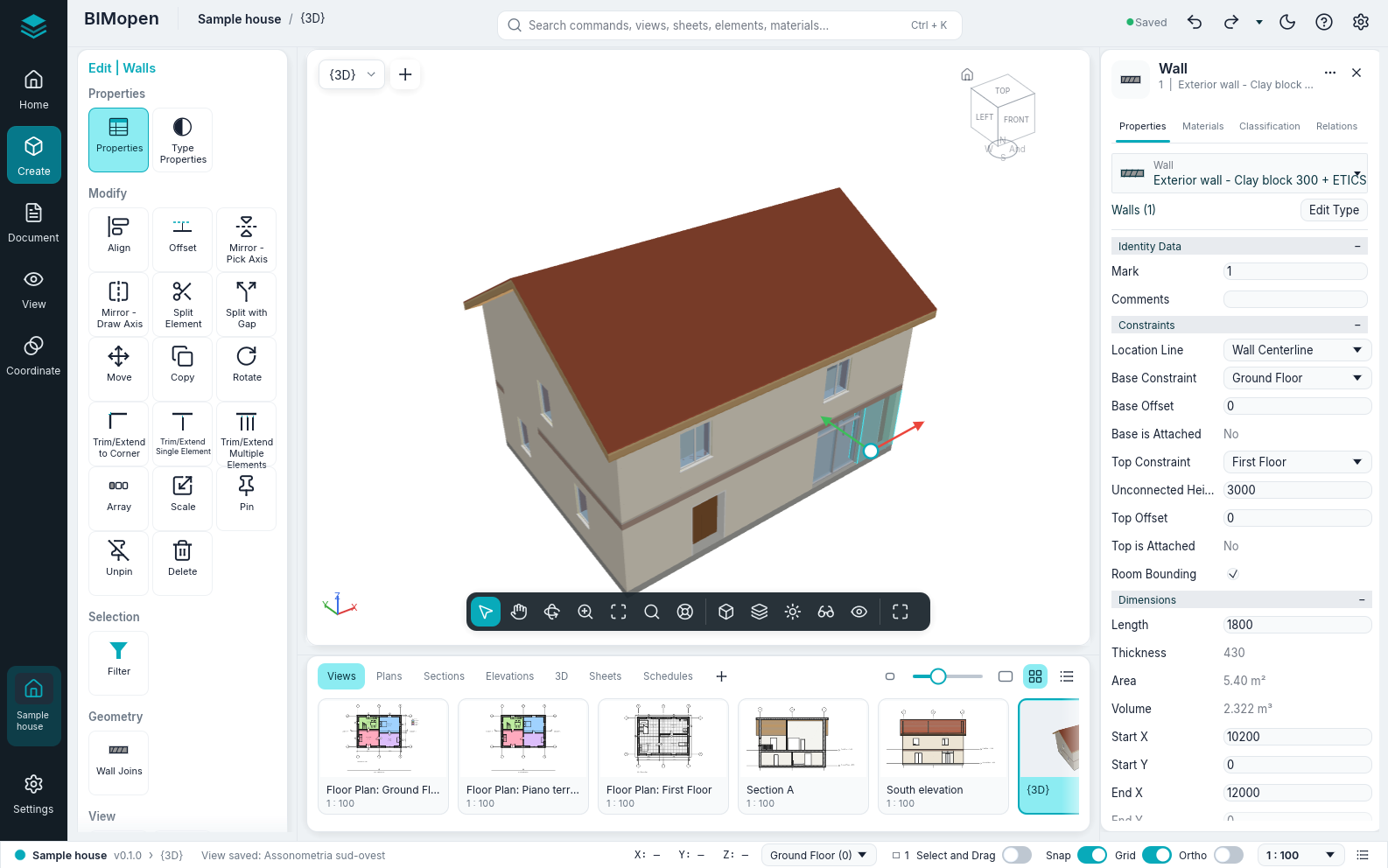
| Part | Where | What it holds |
|---|---|---|
| Rail | Left edge | BIMopen's mark (the application menu), Home (the project), Create, Document, View, Coordinate, the open project and Settings. They take the place of the ribbon's tabs. A click on the selected entry folds the tool panel |
| Top bar | Top | The project and the active view, the command search, undo and redo, the save state, the light or dark theme, the ? menu and Options |
| Tool panel | Left, beside the rail | The ribbon's tabs as groups of tiles, each command once: Create has Home and Insert (with the Architecture tab), Document the sheets and Annotate, View the View tab and the Project Browser, Coordinate Inquiry, Settings Manage. While a tool works or something is selected, the contextual tab («Modify | Walls»: move, copy, rotate, mirror, trim, align, edit profile, Finish Edit Mode…) sits on top; Esc or a click on empty space takes it away |
| Options strip | Over the view, while a tool works | The options of the tool (height, location line, chain…), the options bar of the Revit style |
| View | Centre | The view selector and + for a new view. One view bar, bottom centre: select, the Pan, Orbit (3D) and Zoom modes (with one on, the left button drags the view; Esc ends it), zoom to fit, Zoom Options, SteeringWheels (3D) | the visual style, the detail level, Sun and shadows (3D), Crop (crop view, show the crop region), Temporary Hide/Isolate (its menu, as the view control bar's; the view is framed while it is on) and Reveal Hidden Elements | full screen. In 3D views the ViewCube (a click on a face, an edge or a corner looks from there, a drag orbits, the house goes back to the starting view); on the selection, the move arrows (drag one to move along it, the centre to move freely in plan: the distance shows as you drag, the release moves as Move does) |
| Element panel | Right | The selected element: Properties (the same parameters as the Properties palette), Materials (the layers of its type with their colours and thicknesses, and a layered preview), Classification (category, type, IFC class) and Relations (level, host, hosted doors and windows, views and schedules). With nothing selected, the properties of the active view |
| View strip | Under the view | The views by kind (Views, Plans, Sections, Elevations, 3D, Sheets, Schedules) as thumbnails or as a list; a click opens the view, + makes a new one |
| Status bar | Bottom | The project and the version, the active view, the prompt of the active tool, the cursor coordinates, the active level (its menu opens the plan of another level), the selection count (it opens Filter), the Select and Drag, Snap, Grid and Ortho switches, the scale of the view and the command log |
The Structure and MEP tabs of Create say that these disciplines are not in BIMopen yet.
Command search
Press Ctrl+K, or click the search box in the top bar, and type a few letters: the list shows the commands, views, sheets, schedules, elements and materials that match. Click a result, or choose it with the arrow keys and press Enter: a command starts, a view opens, an element is selected and shown, a material opens in Materials. The search finds every command of the ribbon's tabs, the contextual tab's too (with a view selected on a sheet, «activate» finds Activate View), and runs it as its button does.
The search box is also the command line of the style. Typing in a view writes there, as the
command line does in the Revit style, and Enter runs a keyboard shortcut (WA, DR,
ZF…) or a command with its arguments (wall 0,0 5,0) as typed. The list of commands is in
Command line and MCP.
Right-click menu
In plans, sections and 3D views the right button opens a dark menu: with a selection, the modify commands first (Move, Copy, Rotate, Align, Offset and the others), then the same items as the view's menu in the Revit style.
Everything of the Revit style
Every function of the Revit style is in the BIMopen style, once:
- every button of the ribbon is a tile of the tool panel, in the rail entry that holds its tab, and the contextual Modify tab sits on top of the panel while a tool works or something is selected;
- BIMopen's mark at the top of the rail opens the application menu; the top bar has undo, redo and the ? menu;
- View holds the whole Project Browser, with its menus;
- a thumbnail of the view strip can be dragged onto the open sheet, or onto a sheet's thumbnail, and its right-click menu has the browser's actions and Open in the active window;
- the view selector's menu arranges the view windows (Switch Windows, Tile, Cascade, Maximize, Replicate, Close Hidden); Ctrl+Tab goes to the previous window;
- the right button on a tile offers Add to Quick Access Toolbar: the tool shows in the top bar, works from any section of the rail, and its right button offers Remove from Quick Access Toolbar;
- the key tips work as on the ribbon: tap Alt (or press F10), then a tab's letter opens the rail section that holds it (its letter shows on the rail) and a tool's letters start it.
Light and dark
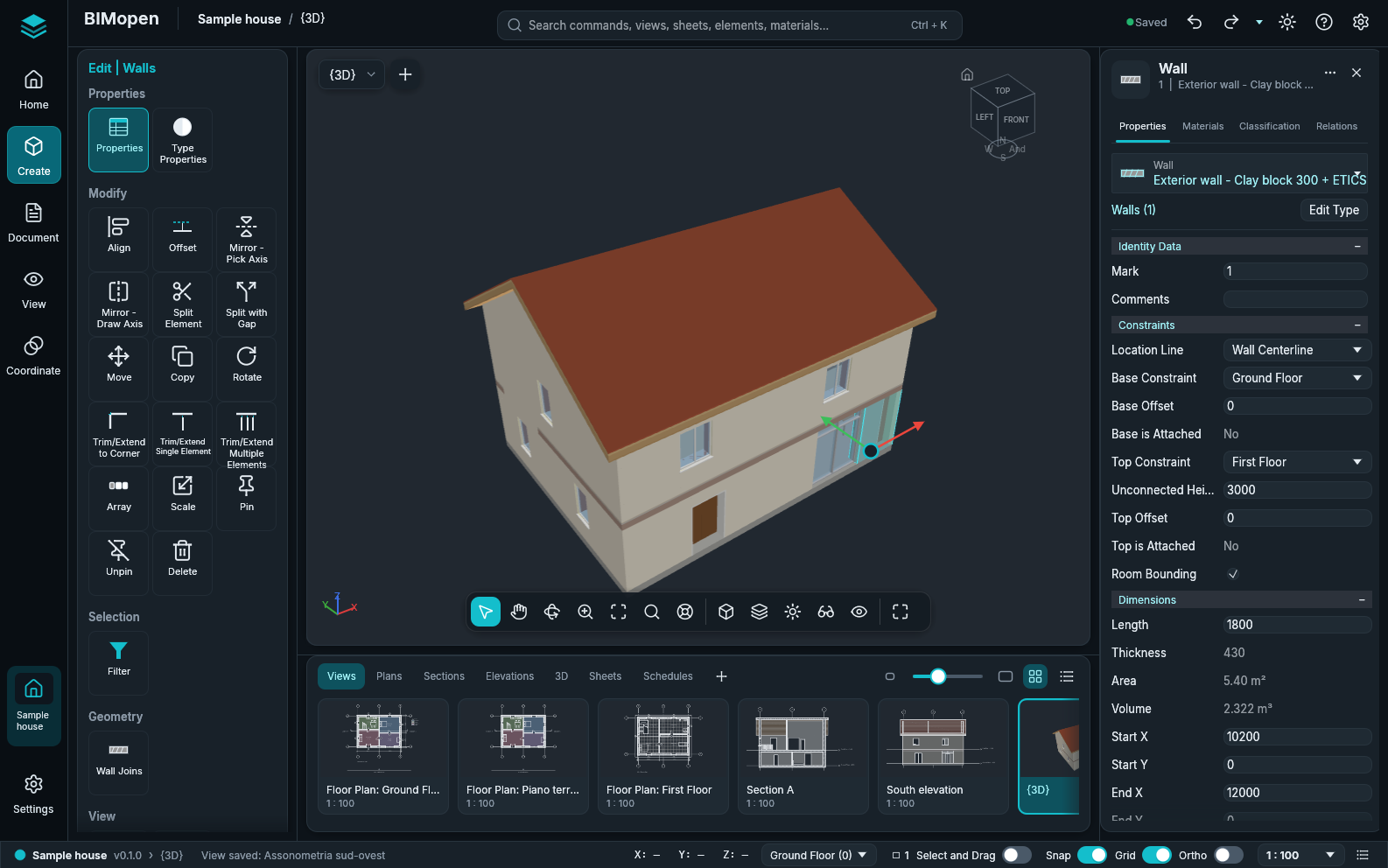
In Arabic the whole window is mirrored, in both styles: the rail and the tool panel are on the right, the element panel on the left.